

Chrome extensions can add password filling, dark mode, grammar checks, content blocking, and other useful tools to a desktop browser. On Android, the situation is different: the standard Chrome app still cannot install Chrome Web Store extensions, even when you request the desktop version of a website. This guide explains the safer alternatives, their limits, and how to test an extension without risking your main browsing setup.
Quick Answer
Chrome for Android still cannot install Chrome Web Store extensions. Keep Chrome as your main browser and use Firefox for supported mobile add-ons. Edge Canary can test some Edge extensions, while Yandex support varies by build. Treat experimental desktop Chrome builds as test software, not a secure daily browser.
Key Takeaways
- Standard Chrome for Android does not support Chrome Web Store extensions, including in desktop mode.
- Firefox for Android is the clearest option when you want officially supported mobile add-ons.
- Edge Canary and Yandex Browser can provide limited extension access, but compatibility and menus can change.
- Keep a stable browser for banking, work accounts, password recovery, and other sensitive tasks.
- Install one extension at a time, review its permissions, and remove anything you no longer use.
Editorial note: This guide was rechecked on July 14, 2026 against Google Chrome Web Store Help, Google Chrome Help, Mozilla Support, Mozilla Add-ons, the archived Kiwi Browser repository, Yandex support materials, and Google’s Chrome security guidance.
At a Glance
| Time Required | About 10–20 minutes to install one browser and test one extension |
| Difficulty | Easy for Firefox; moderate for experimental Edge Canary options |
| Tools Needed | An updated Android device, a stable main browser, and a trusted secondary browser |
| Cost | Usually free; some extensions and services offer paid plans |
Table of Contents
- What Counts as a Chrome Extension on Android?
- Why Chrome Extensions on Android Matter
- What Google Is Doing About Chrome Extensions on Android
- Try Native Android Features Before Installing an Extension
- Best Ways to Use Browser Extensions on Android
- Which Android Extension Browser Should You Choose?
- Option 1: Firefox for Android
- Option 2: Microsoft Edge Canary
- Option 3: Yandex Browser
- Option 4: Experimental Desktop Chrome for Android
- Tablet vs. Phone: Which Works Better?
- Best Extension Types to Test First
- How to Test an Extension Safely
- What to Expect From Android Browser Extensions
- Safety Checklist Before Installing Extensions
- What Not to Do
- Troubleshooting Android Extensions
- Will Google Add Official Chrome Extension Support?
- Final Recommendation
- Frequently Asked Questions
- Sources
What Counts as a Chrome Extension on Android?
A browser extension is a small program that changes or adds browser functions. It may block trackers, fill passwords, adjust page colors, check writing, translate text, save content, or add controls to the browser interface.
The important distinction is between Chrome extensions and mobile browser add-ons. Chrome extensions normally come from the Chrome Web Store and target desktop Chrome or another compatible Chromium browser. Firefox for Android uses Mozilla’s add-on system instead. Some Android browsers can run a limited set of desktop-style extensions, but that does not make them standard Chrome for Android extensions.
Why Chrome Extensions on Android Matter
Extensions matter because many people rely on them as part of their normal workflow. A password manager can fill logins, a dark mode tool can reduce glare, and a writing assistant can review text. On desktop Chrome, these tools can run beside the address bar or in the background.
That extension layer is missing from standard Chrome on Android. Switching a page to desktop mode only changes how the website is displayed. It does not turn the mobile browser into desktop Chrome or add the desktop extension system.
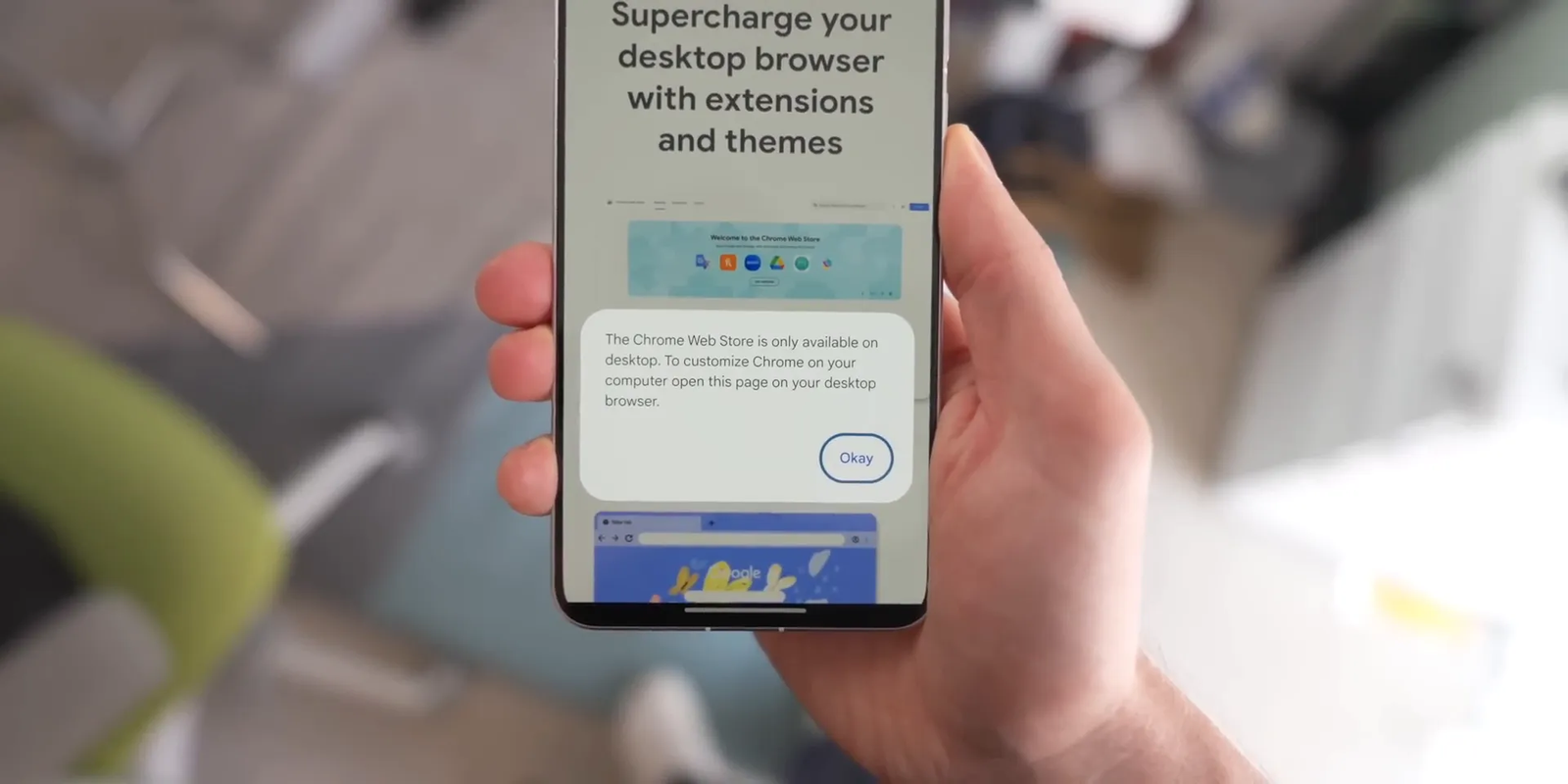
You still have alternatives, but each one uses a different extension system and carries different compatibility or security tradeoffs. The safest choice depends on whether you need a supported mobile add-on, a Chrome-like extension, or only one feature that Android already provides natively.
What Google Is Doing About Chrome Extensions on Android
Google’s current public help page still treats Chrome Web Store extensions as a computer-only feature. Standard Chrome for Android does not provide a supported extension-installation menu, and Chrome Beta does not automatically add desktop extension support.
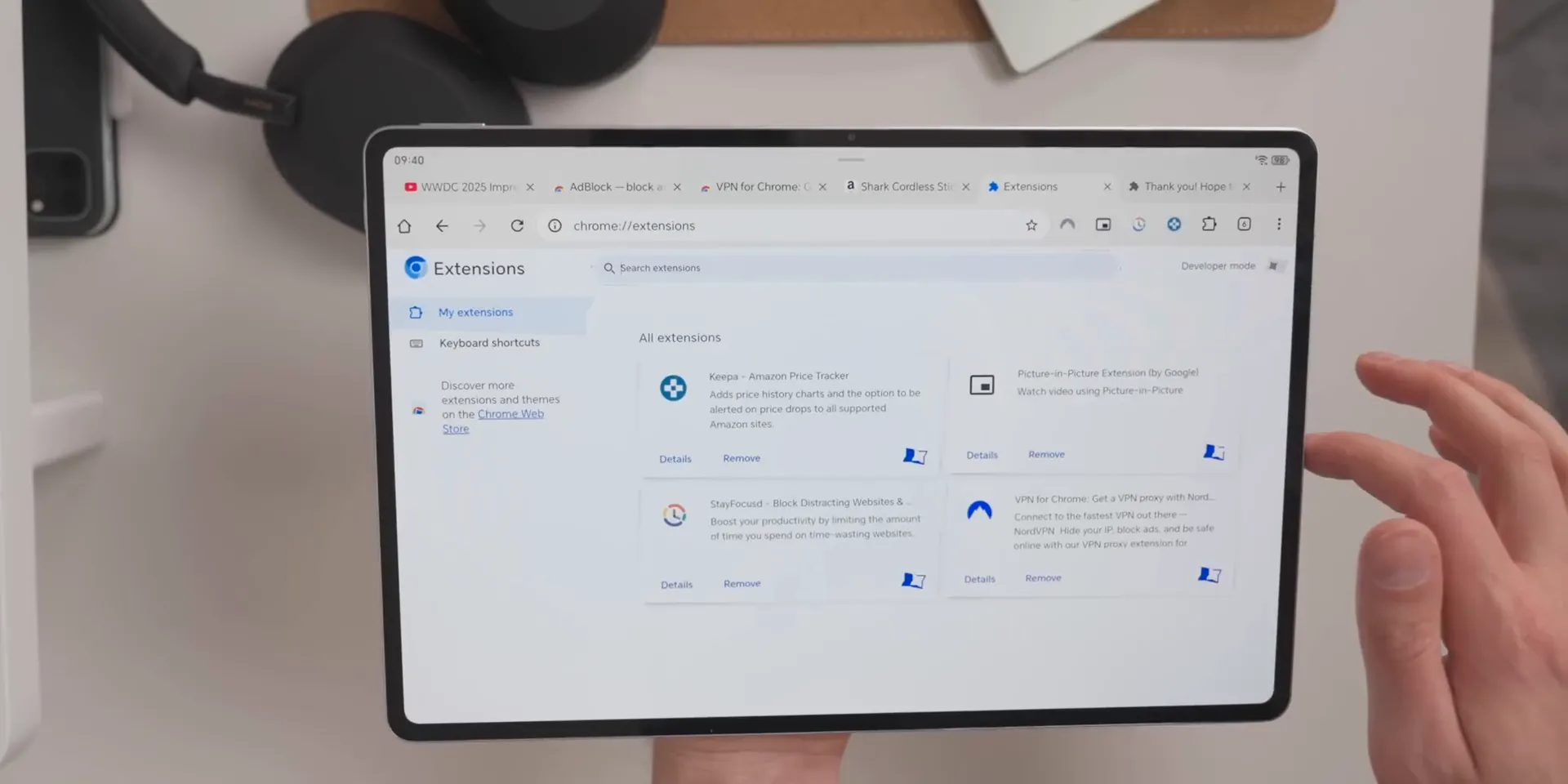
Desktop-oriented Android and Chromium experiments have shown that extensions can work in larger-screen or computer-style environments. However, these experiments are not the same as a supported feature in the regular Chrome app from Google Play. Do not build an important workflow around an unofficial APK or an experimental build that lacks a clear update path.
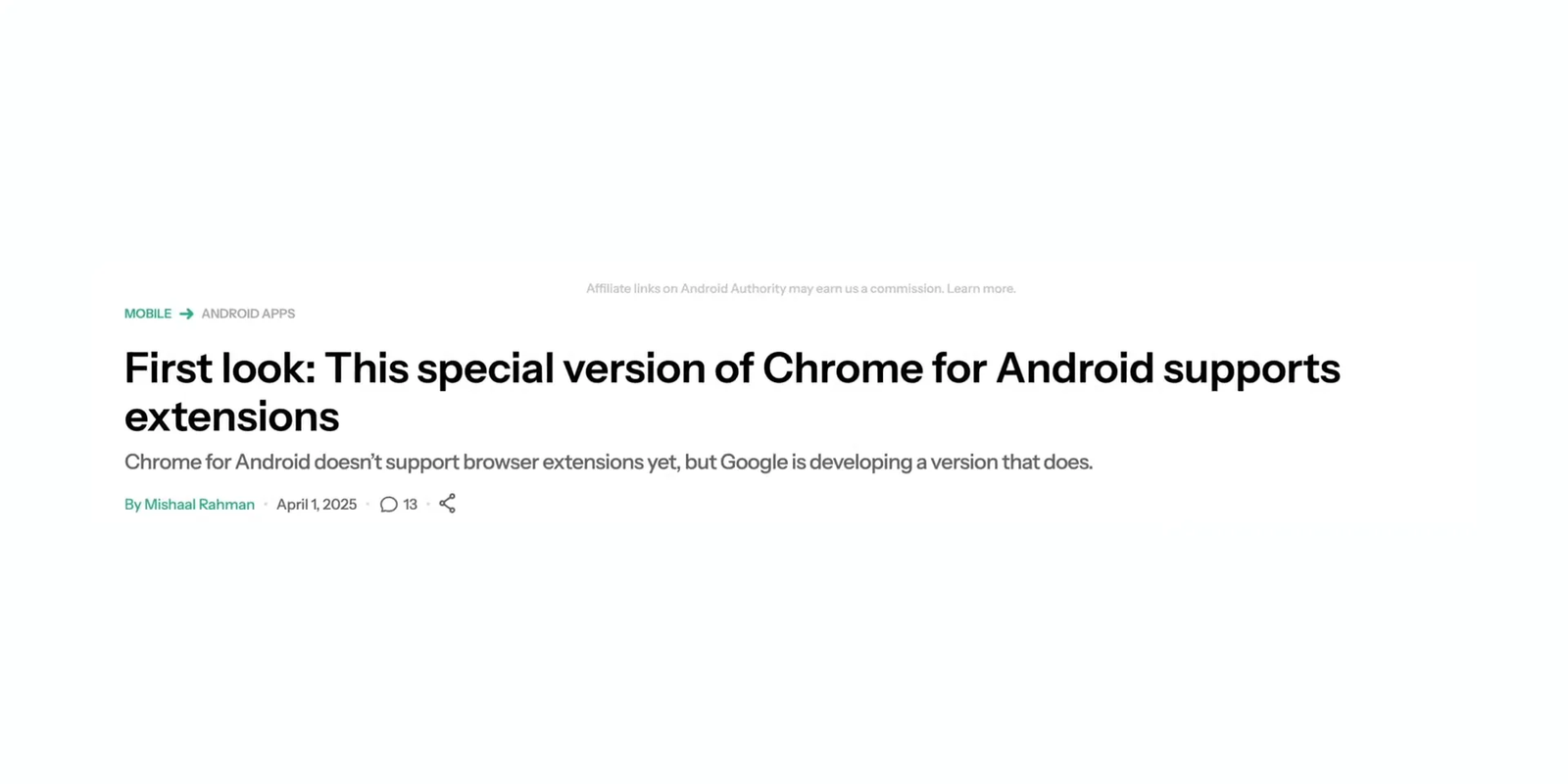
Warning: A browser labeled Chrome Canary, Chromium, or desktop Chrome is not automatically an official or safe Android release. Install browser apps only from a trusted store or a source you can verify, and keep sensitive accounts in a stable browser.
Try Native Android Features Before Installing an Extension
You may not need an extension at all. Android apps and browser features can often perform the same job with a clearer update and permission model.
- Password filling: Use Android’s autofill service or the official app from your password manager.
- Dark mode: Check the browser’s theme, Android’s system theme, or the website’s own display settings.
- Translation: Use the browser’s built-in page translation or a trusted translation app.
- Ad and tracker blocking: Consider a browser with built-in protection or a supported Firefox add-on rather than an abandoned browser.
- Writing help: Use a trusted keyboard or the service’s Android app when it offers the feature you need.
Note: A native Android app can still request broad permissions. Review app permissions and the developer’s privacy information just as carefully as you would review an extension.
Best Ways to Use Browser Extensions on Android
You have four practical paths. Firefox offers the clearest supported mobile add-on route. Edge Canary provides experimental access to some Edge extensions. Yandex Browser may expose Chrome-style extension support in some Android builds. Desktop-oriented Chrome experiments are suitable only for advanced testing.
| Option | Best For | How Extensions Work | Main Warning |
|---|---|---|---|
| Firefox for Android | Users who want supported mobile add-ons | Installs Android-compatible extensions through Mozilla’s add-on system | It is not Chrome-based, and not every desktop Firefox extension is mobile-compatible |
| Microsoft Edge Canary | Users testing Chromium-based mobile extensions | Some builds expose a developer option for installing an Edge extension by ID | Canary features can change, break, or disappear without notice |
| Yandex Browser | Users checking whether a Chrome-style extension works in their build | The Chrome Web Store install button may appear for some extensions and versions | Current English documentation is not clearly Android-specific, so support should not be assumed |
| Experimental desktop Chrome for Android | Advanced users studying desktop-style Android browser work | Special builds may expose desktop Chromium features | It is not the regular Play Store Chrome app and may require sideloading or manual updates |
Which Android Extension Browser Should You Choose?
Choose based on the job, not simply on whether a browser can install an extension. A stable mobile add-on that performs the task is usually better than forcing a desktop extension into a browser that only partly supports it.
| If You Need… | Try This First | Reason |
|---|---|---|
| The safest general setup | Regular Chrome plus Firefox for add-ons | You keep a stable main browser and use an officially documented mobile add-on system when needed. |
| A password manager | The provider’s Android app and autofill service | Native autofill often works across browsers and apps without a desktop extension interface. |
| A Chromium-based extension test | Edge Canary | Some Canary builds support installation by Edge extension ID, but the feature remains experimental. |
| A Chrome Web Store compatibility test | Yandex Browser, only if your build shows the install option | Compatibility varies, and the absence of an install button is a sign not to force the setup. |
| Google’s future desktop-style Android work | Read official announcements and wait for a supported release | Unofficial APKs and test builds are not a dependable daily-browser solution. |
Option 1: Firefox for Android
Firefox is not Chrome-based, but Mozilla officially supports extensions on Firefox for Android. This makes it the strongest first choice when your goal is a reliable mobile add-on rather than exact Chrome Web Store compatibility.
- Install Firefox for Android from Mozilla’s official download page or Google Play.
- Open Firefox and tap the browser menu.
- Tap Add-ons or Extensions.
- Select an Android-compatible add-on.
- Review the requested access, then tap Add.
- Test the add-on on one non-sensitive website before using it broadly.
Mozilla notes that some add-ons may not be compatible with Firefox for Android. Use the Firefox for Android extensions catalog instead of assuming every desktop Firefox add-on will work on a phone.
Pro Tip: Search by the task you need, such as password management, readability, or tracker blocking. You may find a supported Firefox add-on that replaces the Chrome extension you use on a computer.
Option 2: Microsoft Edge Canary
Edge Canary is Microsoft’s frequently updated testing channel. The archived Kiwi Browser project says its extension code was integrated into Edge Canary and documents an installation-by-ID method. Because this is a Canary feature rather than a stable mobile guarantee, the menu may differ or disappear in your build.
- Install Microsoft Edge Canary from Google Play.
- Open Edge Canary and go to Settings > About Microsoft Edge.
- Tap the Edge build number five times to enable Developer Options.
- Open Developer Options and look for Extension install by id.
- Open the Microsoft Edge Add-ons listing for the extension and copy the extension ID from its URL.
- Paste the ID into the installation field, then test the extension on a non-sensitive page.
If the developer menu or installation field is missing, do not download a modified browser or copied extension package from a random website. Your current Canary build may not expose the feature, or Microsoft may have changed the experiment.
Option 3: Yandex Browser
Yandex Browser has been used as a Chrome-style extension option on Android, but you should treat support as build-dependent. Yandex’s current English support material explains installing Chrome Web Store extensions in Yandex Browser, yet it does not clearly identify those instructions as Android-specific.
- Install Yandex Browser from Google Play.
- Open the Chrome Web Store in Yandex Browser.
- Search for the extension you need.
- If Add to Chrome or an equivalent install button appears, review the developer and permissions before continuing.
- Open the browser’s extension menu and confirm that the extension is enabled.
- Restart the browser and check whether the extension still works.
If the install button, extension menu, or required controls do not appear, assume that the extension or your browser build is not compatible. Do not sideload a copied extension file to bypass the limitation.
Review Yandex Browser’s privacy and sync settings before using it with private accounts. A working extension does not automatically make the browser the right choice for banking, work, health, or password-recovery pages.
Option 4: Experimental Desktop Chrome for Android
Desktop-oriented Android browser builds may demonstrate features that are not available in standard Chrome for Android. They can be useful for developers and experienced testers, but they are not a normal consumer setup.
Chrome Beta from Google Play is also not a shortcut to desktop extensions. It provides early browser changes, but Google still describes mobile extension installation as unsupported. A separate APK described as desktop Chrome may have a different package, update channel, or security model.
- Verify who publishes the build and where updates come from.
- Do not sign in to sensitive accounts during initial testing.
- Do not import your full password database or payment details.
- Keep Play Protect enabled and remove the build if updates stop.
- Return to a stable browser if the build crashes, opens unexpected pages, or requests unrelated permissions.
Warning: Avoid unofficial desktop Chrome APKs for banking, business logins, payment accounts, password recovery, medical portals, or private communications.
Tablet vs. Phone: Which Works Better?
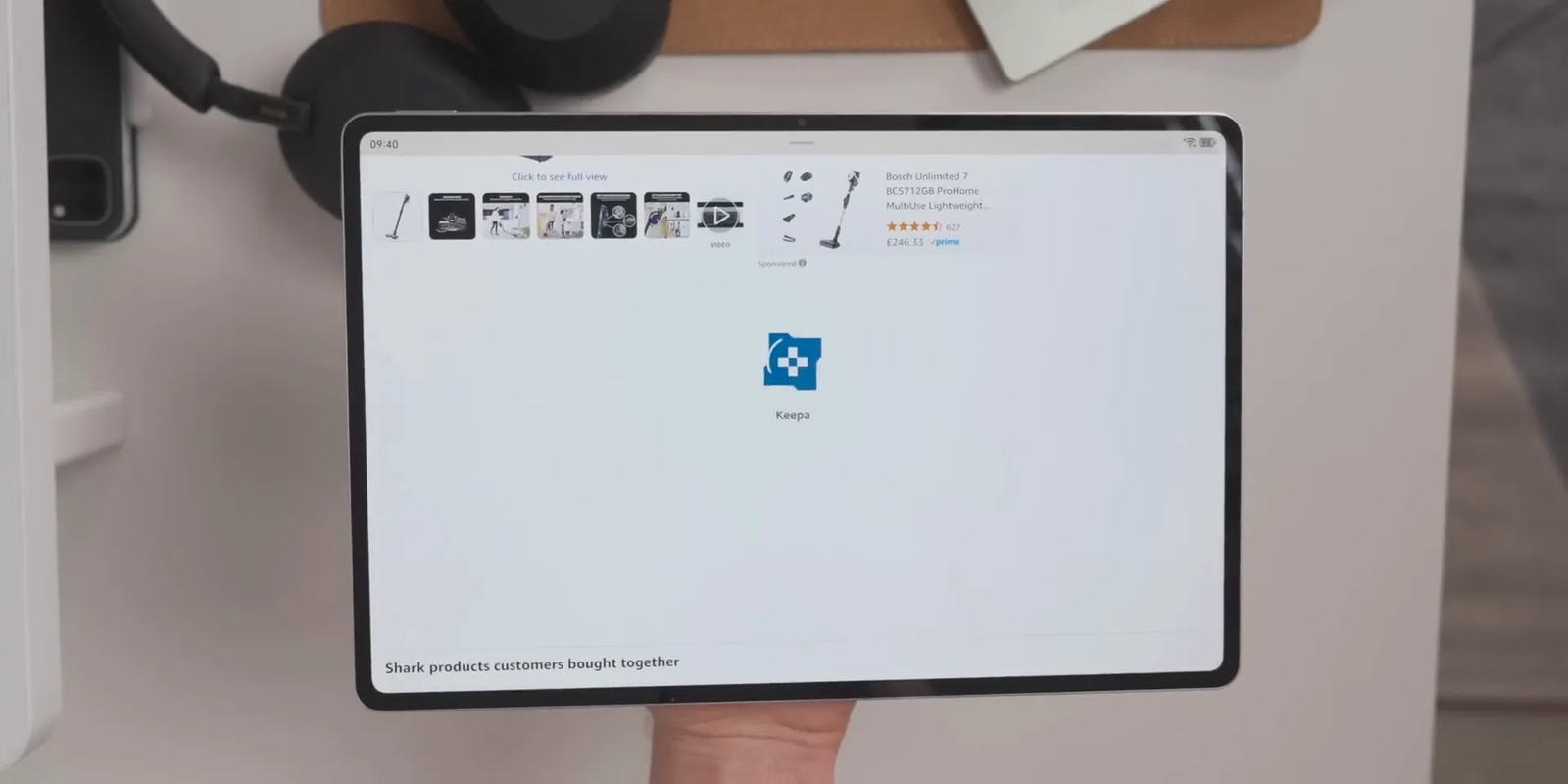
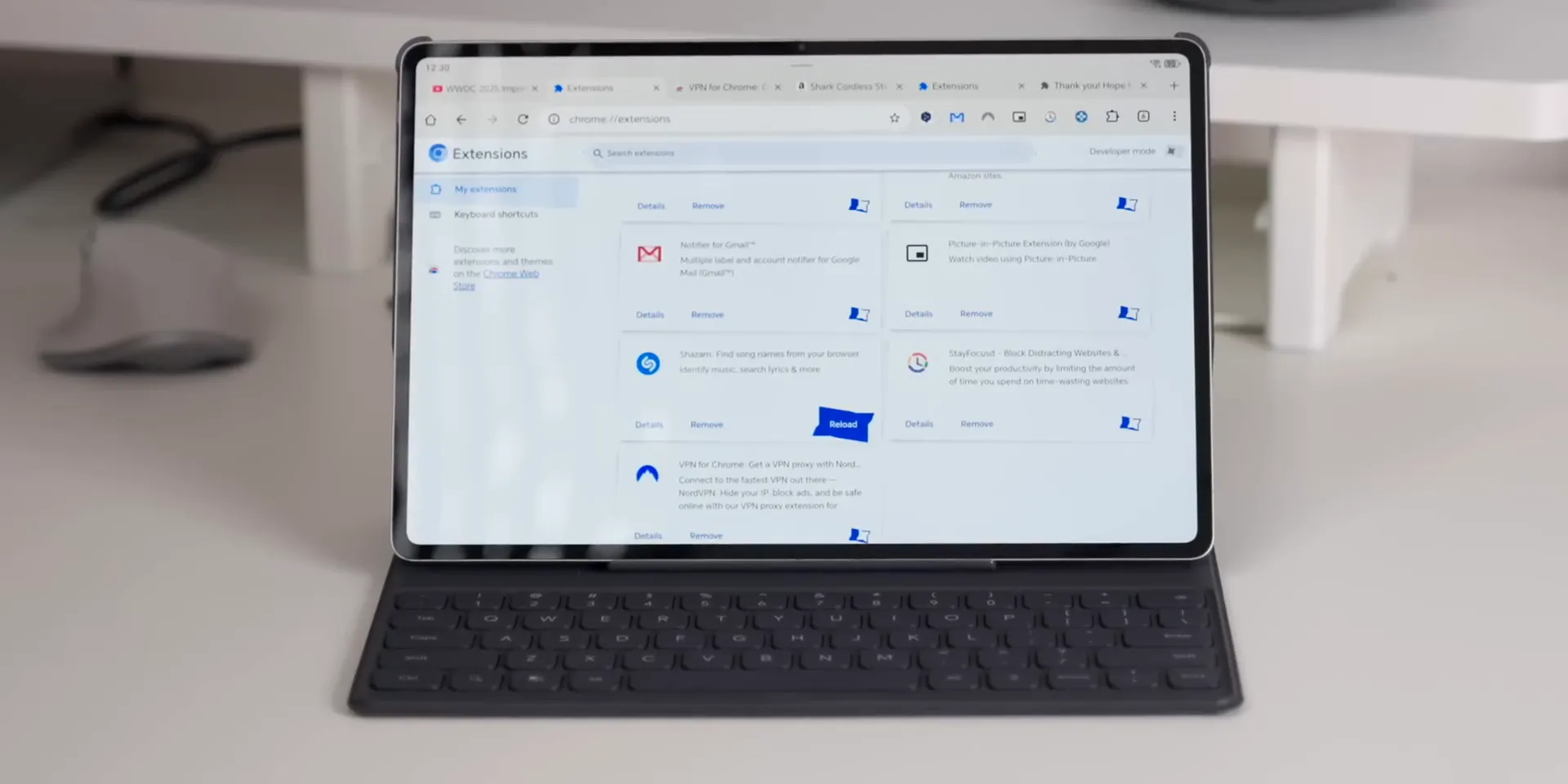
A tablet generally gives desktop-style extensions more room. Wider screens make popups, settings pages, and desktop website layouts easier to use. A keyboard and trackpad can also help when an extension expects mouse-based controls.
Phones can still handle simple tasks, but narrow screens expose more compatibility problems. Wide menus, dashboards, side panels, keyboard shortcuts, and developer tools may be difficult or impossible to use.
Best Extension Types to Test First
Start with an extension that has one clear job and a small interface. Complex desktop tools are more likely to depend on unsupported APIs, wide panels, background behavior, or keyboard commands.
| Extension Type | Android Fit | What to Check |
|---|---|---|
| Password managers | Test cautiously | Prefer the official Android app and autofill first; use an extension only when needed. |
| Dark mode and readability tools | Often a good first test | Check whether pages remain readable and whether forms or images are distorted. |
| Content blockers | Varies by browser | Confirm that the add-on is maintained and compatible with the browser’s current extension system. |
| Coupon or price tools | Mixed | Review tracking, shopping-data access, and permissions across websites. |
| Writing assistants | Mixed | Test several text fields because Android web apps may handle typing differently. |
| Developer tools and dashboards | Poor fit on phones | They often require wide panels, a keyboard, and desktop inspection features. |
How to Test an Extension Safely
Use a controlled test instead of moving your full browsing activity to the new browser immediately.
- Update Android and the browser: Install available security updates before adding extensions.
- Choose one trusted extension: Confirm the developer, official website, update history, and privacy information.
- Read every permission: Compare the requested access with the extension’s stated purpose.
- Use a non-sensitive test page: Avoid banking, email, work, medical, and password-recovery pages.
- Restart the browser: Check whether the extension remains installed and enabled.
- Watch browser behavior: Look for redirects, extra ads, new tabs, slow loading, or unexpected permission requests.
- Remove the extension if unsure: A convenience feature is not worth unclear data access or unstable browsing.
The safest extension is one you genuinely need, understand, keep updated, and can remove without disrupting your main browser.
What to Expect From Android Browser Extensions
Most Chrome extensions were designed for desktop browsers. Their mobile behavior depends on the browser, extension APIs, screen size, permissions, website design, and update path.
- Limited sync: An alternative browser may not sync bookmarks, history, passwords, and settings the same way Chrome does.
- Mixed compatibility: An extension may install but still have broken popups, missing buttons, or unsupported background features.
- Small-screen problems: Desktop menus may be clipped or difficult to control by touch.
- Battery and performance use: Several active extensions can increase memory use and slow page loading.
- Security and privacy exposure: Extensions can receive access to website data when you approve broad permissions.
- Update concerns: An abandoned browser or extension becomes a greater risk as browser APIs and security protections change.
- Older Android limits: Google currently lists Android 10 and newer for Chrome updates. A device that no longer receives current browser updates is a poor place to experiment with extensions.
Safety Checklist Before Installing Extensions
Browser stores reduce risk, but they do not remove it. Google recommends checking the developer, reviews, privacy practices, and requested permissions, then removing extensions you no longer use.
- Check the developer: Prefer a known company or developer with an official website and clear support information.
- Confirm the correct listing: Follow the extension link from the developer’s official site when possible.
- Read the permissions: Be cautious when a simple tool asks to read or change data on every website.
- Review the update history: Avoid abandoned projects and listings with recent complaints about redirects or data use.
- Install one extension at a time: This makes performance or compatibility problems easier to identify.
- Limit site access when supported: Give the extension access only on the sites where you need it.
- Remove unused extensions: Fewer extensions mean fewer components with access to your browsing.
- Keep the browser updated: Do not rely on an extension browser that has stopped receiving security fixes.
Google’s Chrome extension safety guidance recommends comparing an extension’s stated purpose with its permissions and published privacy practices. If those do not match, do not install it or remove it.
What Not to Do When Installing Extensions on Android
Most avoidable problems begin with an unofficial download, an abandoned browser, or too many changes at once.
- Do not install copied extension packages from random websites. Use an official browser store or a verified developer page.
- Do not install several extensions together. You need to know which extension caused a broken page or slowdown.
- Do not use Kiwi Browser for sensitive browsing. Its official repository says the project is archived and no longer maintained after January 2025.
- Do not approve unrelated permissions. A simple visual tool should not need unrestricted access to sensitive pages.
- Do not make an experimental browser your default immediately. Prove that the setup is stable before expanding its use.
- Do not assume desktop mode enables extensions. It changes page presentation, not the browser’s extension support.
Troubleshooting: What to Try When an Extension Does Not Work
An extension can install successfully and still fail because of its interface, the browser build, a missing API, or the website you are testing.
- Restart the browser: Close it fully, reopen it, and confirm that the extension remains enabled.
- Test a simple website: Start with a basic page rather than a complex web app.
- Check the extension menu: Confirm that the extension is enabled and allowed on the current site.
- Review permissions again: The extension may need site access that you did not grant.
- Try a wider layout: Use a tablet, landscape mode, or desktop site view if the popup is clipped.
- Update the browser and extension: Compatibility can change between builds.
- Disable other extensions: Two extensions may conflict or change the same page.
- Remove and reinstall carefully: Recheck the developer and permissions before reinstalling.
- Use a native app or Firefox add-on: A supported mobile alternative may work better than a desktop Chrome extension.
Note: If the browser crashes, opens unexpected tabs, changes your search engine, or shows unfamiliar ads, disable the extension immediately. Remove it, review your browser settings, and change affected account passwords from a trusted device if you entered credentials while the extension was active.
Will Google Add Official Chrome Extension Support to Android?
Google has not publicly committed to full Chrome Web Store extension support in the regular Chrome app for Android phones and tablets. The company continues to work on desktop-style Android experiences, but that does not provide a release date or guarantee for normal mobile Chrome.
The practical answer is to plan around what is supported now. Use Chrome as a stable main browser, Firefox when you need documented mobile add-ons, and experimental browsers only for limited testing.
Final Recommendation
For most people, the safest setup is regular Chrome for daily browsing plus Firefox for Android when an add-on is necessary. Use the Android app or native autofill option for password managers whenever possible. Edge Canary is suitable for limited extension testing, while Yandex Browser should only be used when your current build clearly exposes the extension controls you need.
Start with one trusted extension, test it on non-sensitive pages, and review its behavior after restarting the browser. Keep banking, work accounts, payment pages, health portals, and password recovery in a stable, updated browser. Remove any extension or browser that stops receiving updates or asks for access that does not match its purpose.
Frequently Asked Questions
Can I install Chrome extensions in the regular Chrome app for Android?
No. Google says Chrome Web Store extensions and themes can only be used on computers. Desktop mode changes how a website is displayed, but it does not add extension support to the Android Chrome app.
What is the safest way to use browser extensions on Android?
Keep a stable browser for daily and sensitive browsing. Use Firefox for Android when a supported mobile add-on meets your needs, install one extension at a time, review permissions, and remove extensions you no longer use.
Does Microsoft Edge Canary support extensions on Android?
Some Edge Canary builds expose a developer option that installs an Edge extension by ID. The feature is experimental and may change or disappear. Use it for limited testing rather than banking, work accounts, or other sensitive browsing.
Does Yandex Browser support Chrome Web Store extensions on Android?
Some Yandex Browser versions have allowed Chrome-style extension installation, but compatibility and menus vary. If your current Android build does not show an install button or extension manager, do not force the setup with copied extension files.
Is Firefox a good option for Android extensions?
Yes. Mozilla officially documents extension installation in Firefox for Android and maintains a catalog of Android-compatible add-ons. Firefox is not Chrome-based, so you may need an equivalent Firefox add-on rather than the exact Chrome extension.
Should I install an experimental desktop Chrome build on Android?
Only experienced testers should consider it. Verify the publisher and update source, avoid sensitive accounts, and do not assume that an unofficial APK has the same security or update process as Chrome from Google Play.
Do all desktop Chrome extensions work in Android browsers?
No. Many extensions depend on desktop browser APIs, wide menus, side panels, keyboard shortcuts, or background behavior. A browser may install an extension even when part of its interface or functionality does not work.
Are Android browser extensions safe?
They can be safe when they come from a trusted developer, request reasonable permissions, and receive updates. They can also read or change website data when granted broad access, so install only what you need and review permissions carefully.
Why does desktop mode not enable Chrome extensions?
Desktop mode asks a website to send or display its desktop layout. It does not replace the mobile browser engine, add the desktop extension framework, or create a Chrome Web Store installation menu.
Should I replace Chrome with an alternative Android browser?
You do not need to replace Chrome completely. Keep a stable browser for your main activity and use a second, actively maintained browser only when you need a particular add-on or extension feature.
Sources
- Google Chrome Web Store Help — confirms that extensions and themes cannot be installed on mobile devices, including in desktop mode.
- Google Chrome Help — lists current Android requirements and Chrome update steps.
- Mozilla Support — documents how to find, install, update, disable, and remove Firefox for Android extensions.
- Mozilla Add-ons — provides the Android-compatible Firefox extension catalog.
- Kiwi Browser repository — records the project’s archive status and the documented Edge Canary extension-ID method.
- Google Online Security Blog — explains how to review extension developers, privacy practices, permissions, and installed extensions.